 DSLR Assistant
All Help articles
Getting Started
Automated Shooting
Reviewing & Organizing
Troubleshooting
Purchases
Connect your camera
Last updated: September 13, 2026
DSLR Assistant controls your Canon EOS camera over a USB cable. There are no drivers to install and nothing to pair — the app finds the camera as soon as it's switched on.
Connect for the first time
- Plug the USB cable into the camera and into a USB port on your Mac. Use a port on the Mac itself rather than a hub or a monitor's USB ports.
- Turn the camera on.
- Open DSLR Assistant. After a few seconds the camera's name appears in the toolbar, and the Camera tab in the left panel shows the camera, its battery level and its current settings.
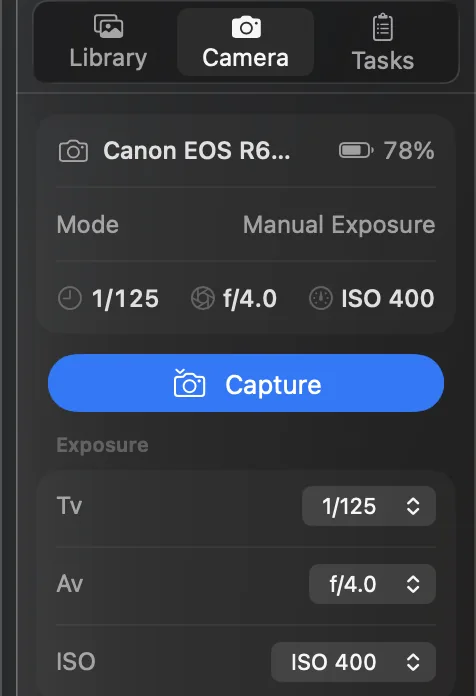
If the app still shows No Camera Connected after half a minute, go through Camera not detected or disconnecting. The most common cause is another app on your Mac — Photos or Image Capture — grabbing the camera the moment it's plugged in.
Before a long session
A time-lapse, a long Bulb exposure or a studio day can keep the camera busy for hours. A few minutes of preparation saves the shoot:
- Power the camera properly. The Mac doesn't charge the camera over USB. Start with a full battery, or better, use the camera's AC adapter or a dummy battery for anything longer than an hour.
- Keep a memory card in the camera. Photos are copied to your Mac, but some cameras refuse to shoot without a card, and video is always recorded to the card first.
- Turn off the camera's Wi-Fi. On many models, the camera ignores the USB cable while Wi-Fi is on.
- Leave the Mac's sleep settings alone. While a sequence or a Bulb exposure is running, DSLR Assistant keeps your Mac awake and stops the camera from powering itself off. When nothing is running, both can sleep as usual.
Use more than one camera
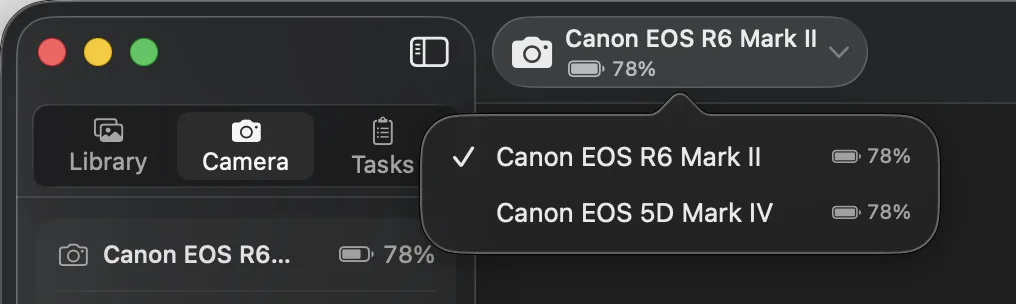
You can connect several cameras at once. Click the camera name in the toolbar and choose which one to control — the Camera and Tasks tabs switch to that camera. A time-lapse or bracketing series keeps running on its own camera even while you work with another one.
Check that your model is on the list
DSLR Assistant works with over 50 Canon EOS DSLR and mirrorless cameras, from the EOS 40D to the latest EOS R bodies. Find your exact model on the camera list.
Still stuck? Contact us →