 DSLR Assistant
All Help articles
Getting Started
Automated Shooting
Reviewing & Organizing
Troubleshooting
Purchases
Focus and compose in Live View
Last updated: September 13, 2026
Live View shows what the camera's sensor sees, on your Mac's screen. It's the easiest way to nail focus on a macro subject, frame a product shot, or check a composition when the camera is out of reach.
Turn Live View on and off
Do any of the following:
- Click Start Live View in the Live View card on the Camera tab.
- Press L, or choose LiveView → Start LiveView.
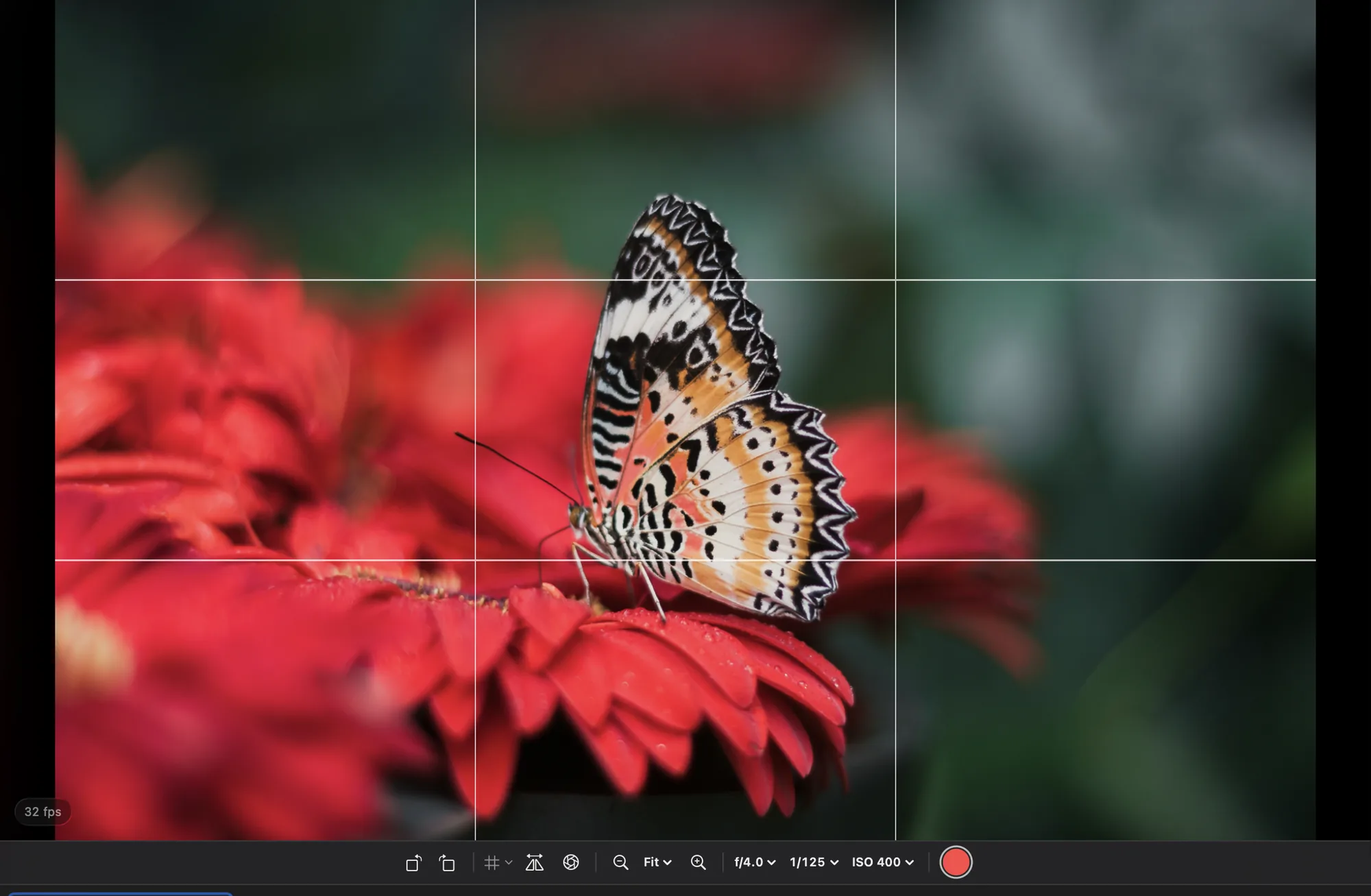
The center of the window switches to the live picture. Do the same again to turn it off. To flip between the live picture and your last shot without stopping Live View, press V or use the Live View / Media Preview switch in the toolbar.
Check focus up close
- In the toolbar under the picture, set the zoom to 5× or 10× (or use the magnifier buttons next to it). Fit shows the whole picture again.
- While zoomed in, drag the picture to move to the part you want to check — an eye, a label, a star.
- Move focus with the six buttons in the Manual Focus row of the Live View card: the three on the left bring focus closer, the three on the right move it further away. Double arrows make a large step, single arrows a medium one, and the small arrows in the middle a fine adjustment. The same steps are in the LiveView menu in the menu bar.
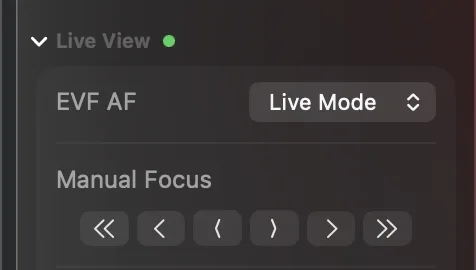
To move focus from the Mac, the switch on the lens must be set to AF. With the lens set to MF, the camera ignores focus commands — turn the focus ring by hand instead.
The EVF AF setting in the same card chooses how the camera autofocuses during Live View (for example, face detection or a single point).
Other tools in the toolbar
- Grid — overlays composition lines. Hover over the button to preview the grid; click it to switch the grid on, set the number of lines, or pick the Rule of Thirds or Phi preset.
- DOF Preview — stops the lens down to the working aperture so you can see how much of the scene will be sharp. The picture may get darker — that’s normal at small apertures.
- Flip Horizontally — mirrors the picture, which is easier to work with when you're in front of the camera.
- Rotate Left / Rotate Right — for a camera mounted in portrait orientation.
- Aperture, Shutter Speed, ISO — change exposure without leaving the picture, and the round button takes the shot.
The badge in the corner shows the Live View frame rate, the zoom level and Exp.SIM when the camera is simulating the final exposure on screen.
Show Live View on a second display
Click Auxiliary Window in the toolbar to open a second preview window, and drag it to another display or a large TV in the studio. It can show Live View or your latest shot while you keep the main window for controls.
Working at night? Night Mode dims the screen so it doesn't spoil your eyes or the shot.
Still stuck? Contact us →