 DSLR Assistant
All Help articles
Getting Started
Automated Shooting
Reviewing & Organizing
Troubleshooting
Purchases
Record video
Last updated: September 13, 2026
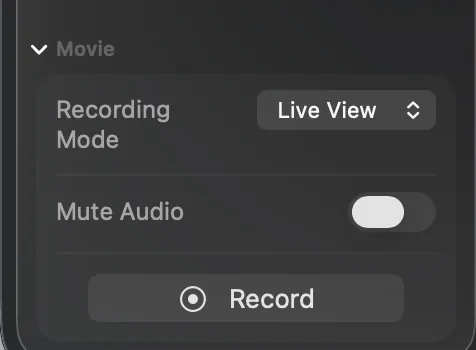
Video controls are in the Movie card at the bottom of the Camera tab. The Recording Mode menu decides where the video comes from, and each mode suits a different job.
Native: the camera records
Choose this when you want the camera's full video quality — its resolution, frame rate and codec, exactly as set in the camera's own menus.
- Put a memory card in the camera. The camera always records to the card first.
- Switch the camera to movie mode. Depending on the model, that's the Live View/Movie switch, the Photo/Movie switch or the movie position on the mode dial.
- Set Recording Mode to Native and click Record.
- Click Stop Recording when you're done. The clip is copied from the card to your library and appears in the filmstrip.
Live View: the Mac records
Choose this for quick clips, tutorials and product spins where convenience matters more than the camera's top video settings. DSLR Assistant records the Live View picture straight into your library as a .mov file — nothing is written to the card.
- Set Recording Mode to Live View.
- Leave Mute Audio off to record sound from your Mac's microphone, or turn it on for a silent clip. The first time, macOS asks whether DSLR Assistant may use the microphone — click Allow.
- Click Record. Live View turns on by itself if it isn't already, and a red REC indicator with the running time appears over the picture.
- Click Stop Recording. The clip is saved to your library.
The codec for Live View recordings is set in DSLR Assistant → Settings… → Movie Recording. Motion JPEG keeps every picture intact and is easier to edit, but files are large. H.264 makes much smaller files and plays back anywhere.
While you're recording
- The other camera settings are locked until you stop, so an accidental click can't ruin the take. Stop Recording always stays available.
- If you close the microphone permission prompt by mistake, turn access back on in System Settings → Privacy & Security → Microphone.
- To play a clip back, select it in the filmstrip — it opens in the preview with play and scrub controls.
Still stuck? Contact us →