DSLR Assistant names every photo and video as it arrives and puts it into a folder, following a pattern you set up once. A few minutes here saves renaming hundreds of files after a shoot.
Set up your pattern
Choose DSLR Assistant → Settings… and open the Files & Folders tab. You can also click Customize naming template… on the Library tab.
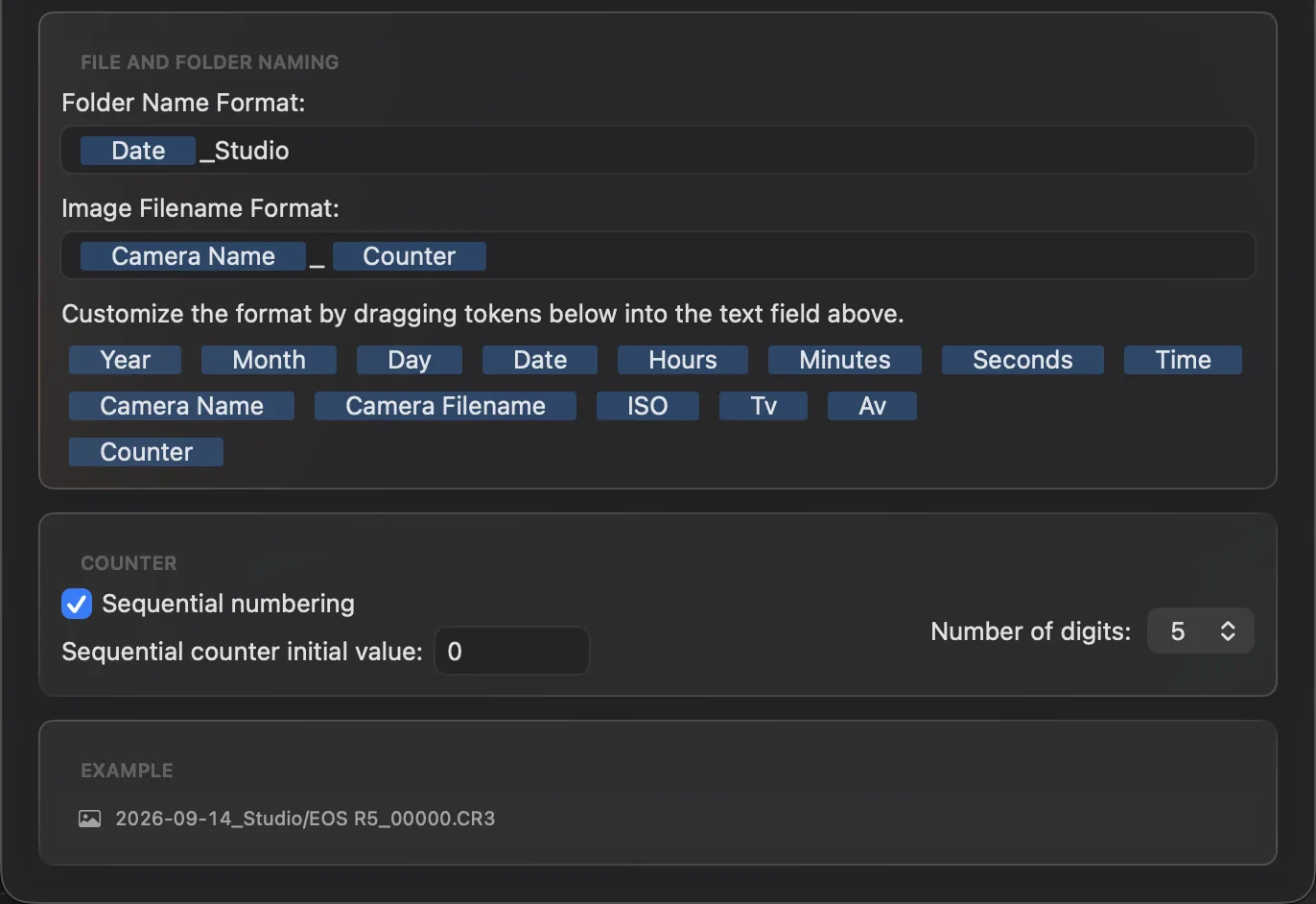
In File and Folder Naming, the Folder Name Format field sets the name of the folder, and Image Filename Format sets the name of each file.
Drag tokens from the palette below into either field. Type ordinary text between them — an underscore, a dash, a client's name.
To remove a token, click it and press Delete.
Check the Example line: it shows the name the next photo will get.
Drag tokens into the folder and file name fields; the example shows the result.
Available tokens
Date & Time — Date (2026-01-15), Year, Month, Day, Time (14-32-05), Hours, Minutes, Seconds.
Camera — Camera Name, Camera Filename (the name the camera gave the file, such as IMG_0421), ISO, Tv (shutter speed), Av (aperture).
Counter — a running number.
Examples
One folder per day — folder Date, file Camera Name_Counter → 2026-01-15/Canon EOS R6 Mark II_00042.CR3
One folder per client — folder Year-Month_Smith Wedding, file Smith_Counter → 2026-01_Smith Wedding/Smith_00042.CR3
Exposure in the name, handy for bracketing — file Time_Tv_Av → 14-32-05_1'250_8.0.CR3
The file extension (.CR3, .JPG, .MOV) is added automatically. Shutter speeds are written as 1'250 rather than 1/250, and a slash typed into a pattern becomes a dash, so a name can never create a subfolder by accident.
How the counter works
Number of digits sets how many digits the counter has, padded with zeros — with 5 digits, numbers look like 00042.
With Sequential numbering on (the default), the counter keeps going up across folders and sessions instead of starting again in each folder, and it remembers where it stopped when you quit the app. Sequential counter initial value is where the count currently stands — change it to restart the series, for example at 1, or to carry on from another card at 500.
With Sequential numbering off, every folder starts again from 0.
The RAW and JPEG files of one shot share the same number.
Files are never overwritten. If a name is already taken in the folder, the next free number is used; if your pattern has no counter, a number in brackets is added to the end of the name.
Put the Counter in the file name, not the folder name. A counter in the folder name gives every photo a folder of its own.
See where the next shot will go
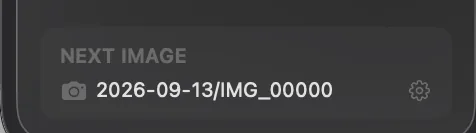
The Next Image section at the bottom of the Library tab always shows the folder and file name the next photo will get — a quick check before you start an important session.
Next Image shows exactly where the next photo will be saved.
 DSLR Assistant