 DSLR Assistant
All Help articles
Getting Started
Automated Shooting
Reviewing & Organizing
Troubleshooting
Purchases
Work in the dark with Night Mode
Last updated: September 13, 2026
A bright laptop screen at a dark-sky site ruins your night vision in seconds and can light up the foreground of a long exposure. Night Mode dims the screen and turns it red, which your eyes handle far better in the dark.
Turn Night Mode on
Click Night Mode (the moon button) in the toolbar. Click it again to go back to normal.
Night Mode dims the whole display — not just the DSLR Assistant window — and on every connected display. Your normal display settings come back when you turn it off or quit the app.
Adjust how dark and how red
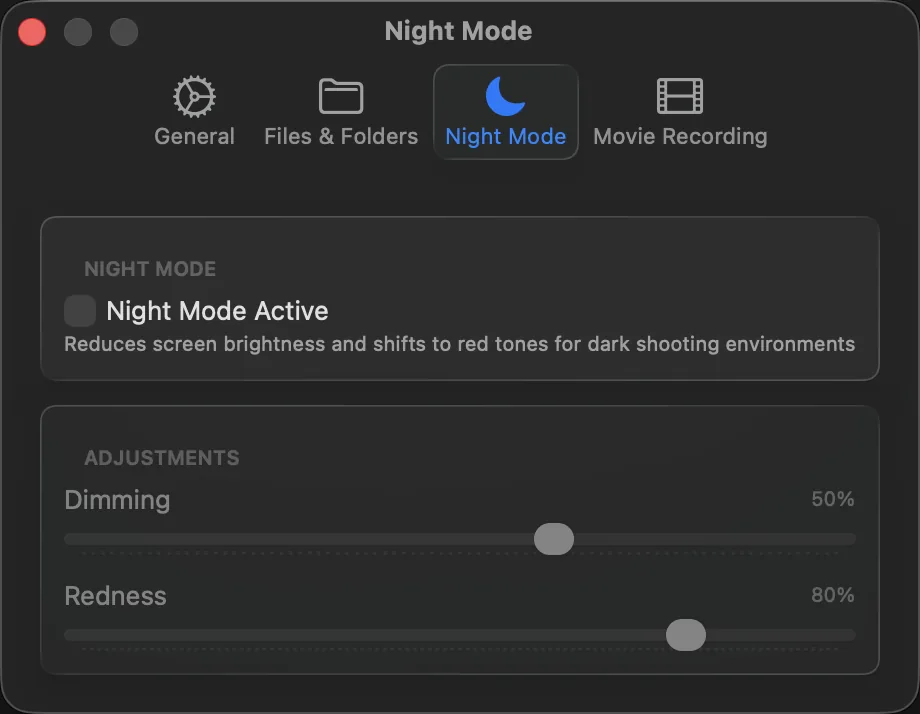
- Choose DSLR Assistant → Settings… and open the Night Mode tab.
- Drag Dimming to set how dark the screen gets.
- Drag Redness to set how strongly the colors shift to red.
The Night Mode Active switch on the same tab turns Night Mode on and off, so you can fine-tune the sliders while you see the effect.
Tips for night shooting
- Set the sliders at home in a dark room, before you're out in the field.
- Night Mode changes how the screen looks, not your photos — the histogram is the reliable way to judge exposure at night (see Check your shots).
- Combine it with a time-lapse of Bulb exposures for star trails.
Still stuck? Contact us →