 DSLR Assistant
All Help articles
Getting Started
Automated Shooting
Reviewing & Organizing
Troubleshooting
Purchases
Check your shots
Last updated: September 13, 2026
The point of shooting tethered is to catch problems while you can still reshoot: a soft eye, a blown highlight, a missed focus point. Everything you need for that is one click away from the photo.
Open a photo
New shots appear in the filmstrip under the preview a moment after they're taken. To look at earlier work, open the Library tab in the left panel, pick a folder, and click a thumbnail. Use the arrow keys to move through the filmstrip.
Zoom in to check sharpness
- Press 0 to see the photo at Actual Size (100%), and ⌥⌘0 to fit it back into the window.
- + and − zoom in steps. The same commands are in View → Zoom and in the toolbar under the photo.
- Drag the photo to move around while zoomed in.
- [ and ] rotate the photo left and right.
Show exposure and focus warnings
The toolbar under the photo has four overlays. Hover over a button to preview its overlay; click it to switch the overlay on and adjust it.
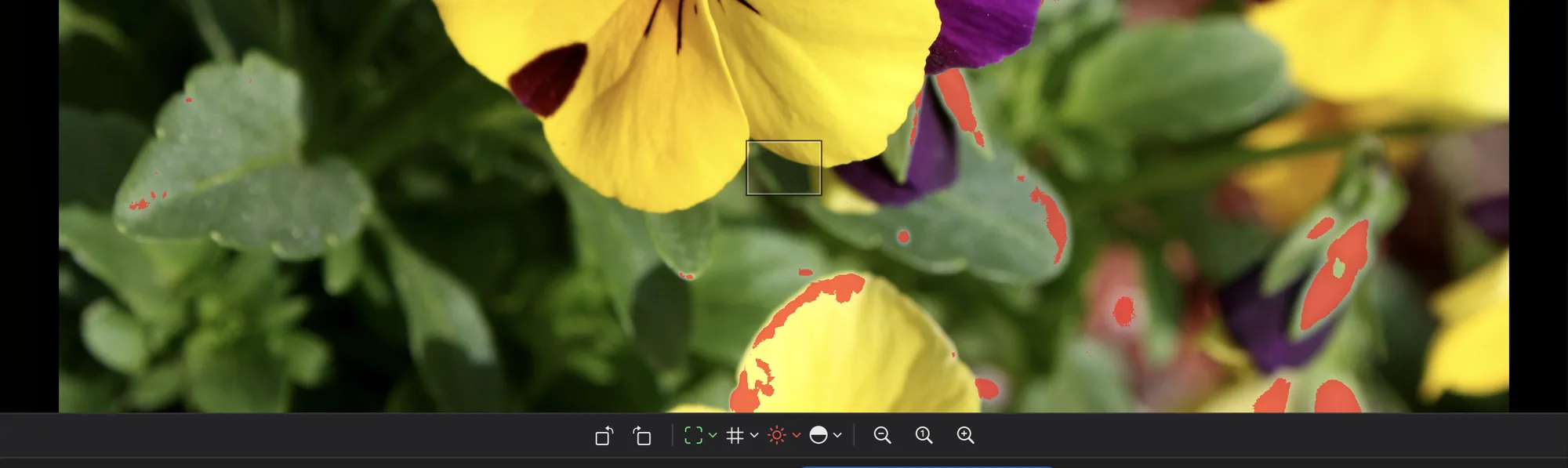
- Focus Points — shows the autofocus points the camera used, so you can see at a glance whether it focused where you meant it to.
- Blown Areas — highlights overexposed parts of the photo. Lower the Threshold to also catch areas that are nearly white.
- Clipped Blacks — highlights shadows that have gone completely black.
- Grid — composition lines, with Rule of Thirds and Phi presets, to check horizons and framing.
Read the histogram and camera settings
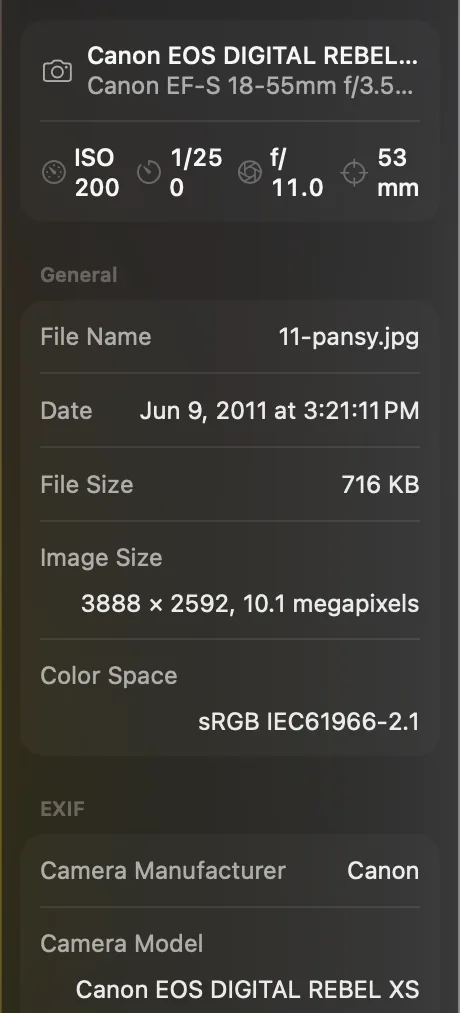
The Inspector on the right shows the histogram and everything the camera recorded about the shot. If it's hidden, click Show Inspector at the right end of the toolbar.
- Histogram — click its menu to show all colors together or a single color with Channel, and to pick the Color Space for the readout.
- General — file name, date, size and dimensions.
- EXIF — camera, lens, focal length, shutter speed, aperture, ISO, flash and more.
Rate your best shots
In the IPTC card of the Inspector, click a star under Rating to give the photo one to five stars. The rating is saved in a small .xmp file next to the photo — the photo itself isn't modified.
Manage files from the filmstrip
Right-click a thumbnail to Open it in its default app, choose another app with Open With, Show in Finder, or Move to Trash. To sort thumbnails by name or file type, or to show file extensions, use View → Arrange By or the sort menu at the right end of the bar under the filmstrip.
Videos play right in the preview: click the play button, or drag along the timeline to jump to a moment.
Still stuck? Contact us →